Last updated: 2026-10-15
Why this matters: Commercial kitchens rarely cook from raw ingredients on the line during service. Instead, the kitchen prepares large batches of sauces, stocks, dressings, marinades, and butchered proteins ahead of time. In spreadsheets, sub-recipes are a maintenance nightmare: if the wholesale price of extra virgin olive oil jumps by 15%, you have to find and manually recalculate every vinaigrette, sauce, and finished dish in your binder. In Culizen, prep items cascade automatically — when an ingredient price moves, every sub-recipe and finished dish recalculates instantly.
What is a Prep Item?
A Prep Item (or sub-recipe) is a recipe whose primary purpose is to be used as an ingredient inside other recipes.
Examples include:
- Stocks & Sauces: Chicken stock, Demi-glace, San Marzano tomato sauce, Hollandaise.
- Dressings & Dips: Caesar dressing, Tzatziki, Chimichurri, Garlic aioli.
- Bakery & Pastry: Pizza dough balls, Brioche buns, Tart shells, Pastry cream.
- Butchered / Marinated Proteins: Marinated chicken souvlaki skewers, trimmed beef tenderloin steaks.
Creating a Prep Item Step-by-Step
- In Recipes, click New Recipe.
- At the top of the recipe creation modal, switch the type tab from Main Recipe to Prep Item:
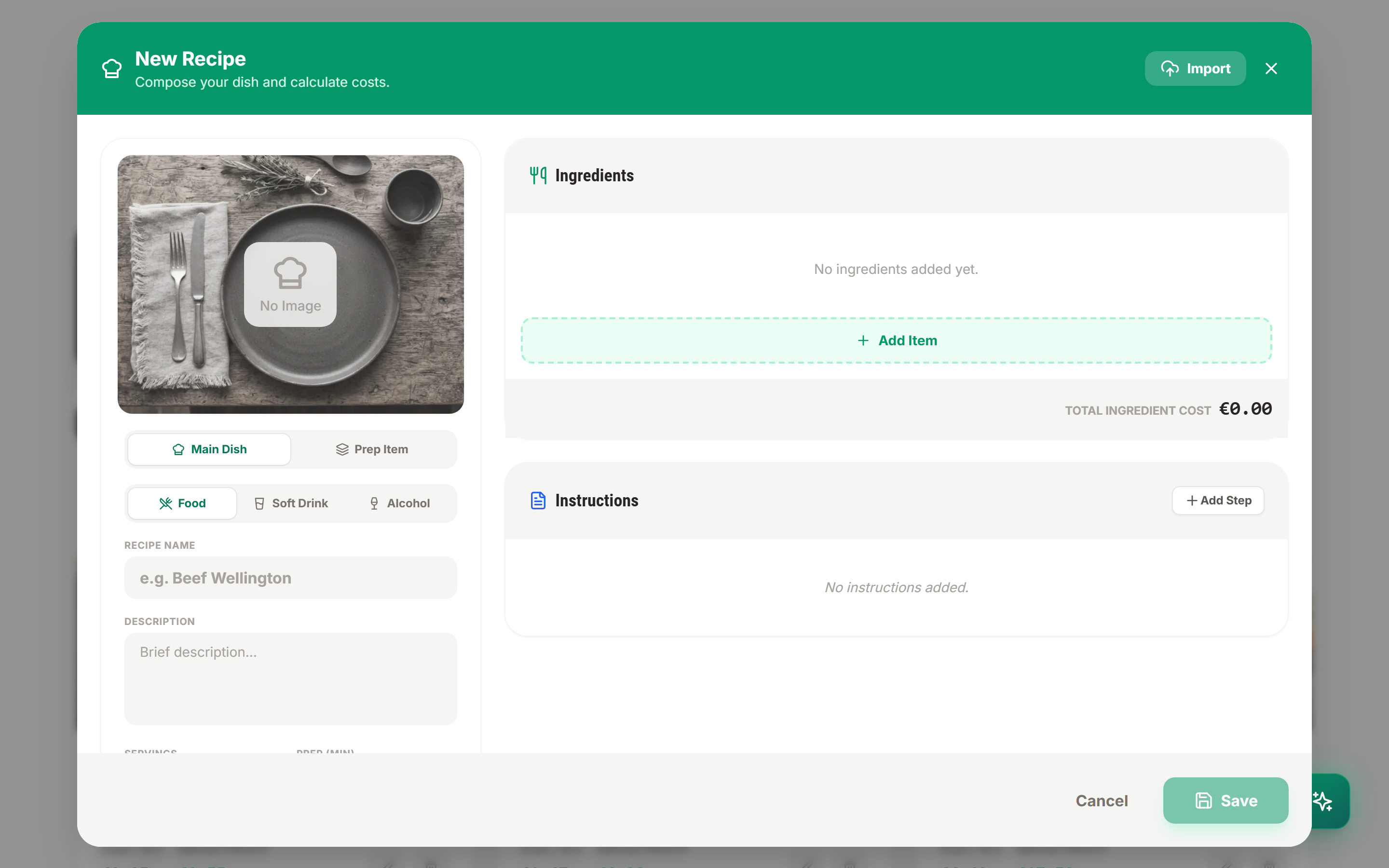
- Enter the name (e.g. House Tzatziki Batch).
- Set the Batch Yield:
- Specify the finished usable output (e.g.
2.5 kg,5 litres, or12 portions). - Culizen will calculate the cost per unit of prep (e.g. €3.20 per kg) by dividing total batch ingredient cost by your usable yield.
- Specify the finished usable output (e.g.
- Add and link your raw pantry ingredients:
- Greek strained yogurt, grated cucumber, garlic, red wine vinegar, dill, and olive oil.
- Set cooking loss or evaporation if applicable (e.g. a simmered demi-glace that reduces by 40%).
- Save the prep item.
Cascading Costs into Finished Dishes
Once your prep item is saved, it functions just like any other ingredient in your pantry catalog:
- Open or create a finished menu dish (e.g. Chicken Souvlaki Plate).
- Click + Add Item under Ingredients.
- Search for your prep item (House Tzatziki Batch) and link it.
- Enter the portion used on the dish (e.g.
60 gor1 portion).
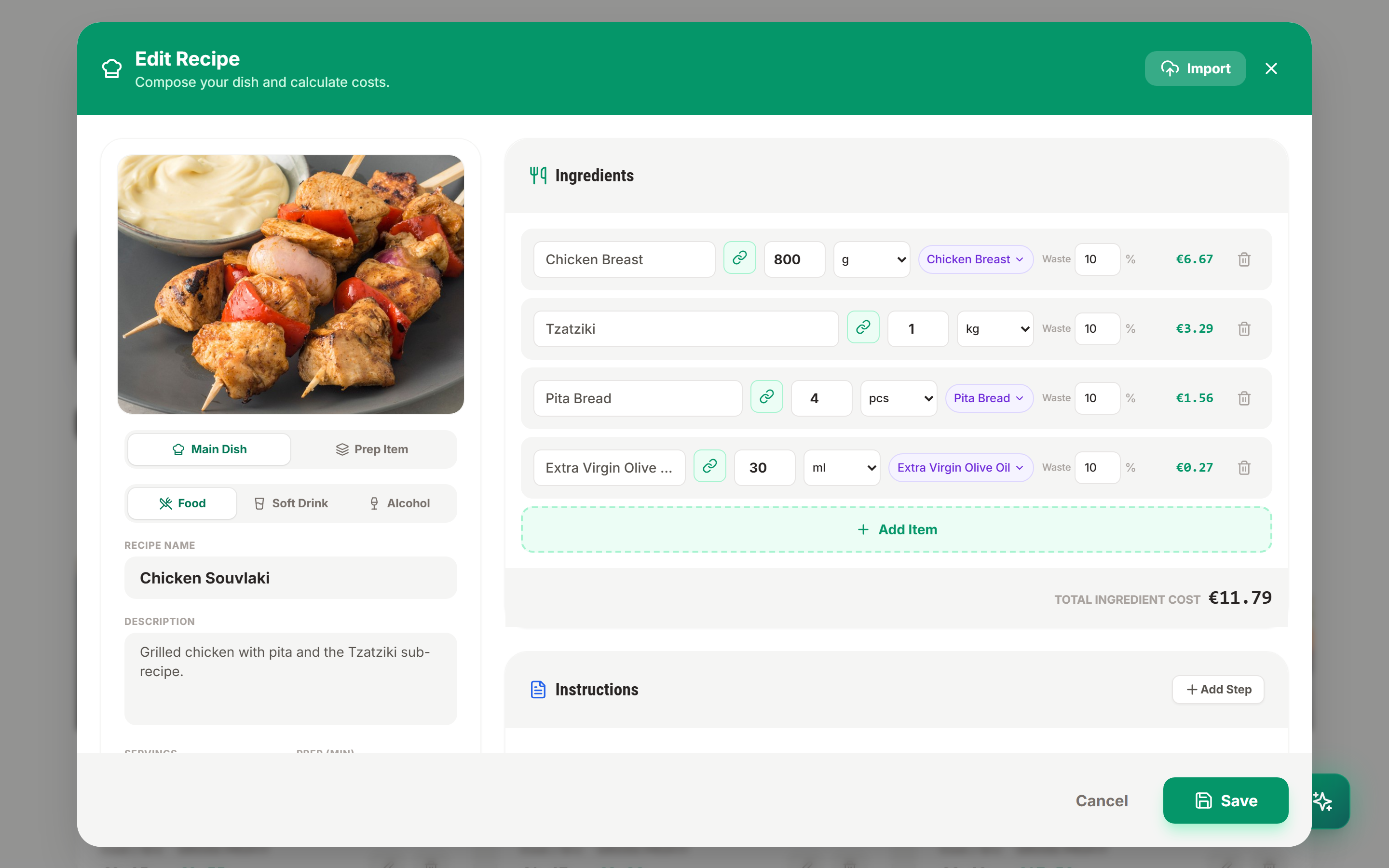
Notice that the recipe editor clearly displays the linked prep item, its portion cost, and rolls up allergens (such as Dairy and Gluten) automatically into the parent dish.
The Power of Instant Cost Cascading
Here is what happens in the real world:
- You scan a new invoice from your dairy supplier where strained yogurt increased from €2.80/kg to €3.30/kg.
- Culizen approves the new price.
- The House Tzatziki Batch recalculates its batch cost and cost-per-gram.
- Every dish on your menu using Tzatziki (Chicken Souvlaki, Meze Platter, Gyro Wrap) recalculates its cost per serving, food cost percentage, and profit margin in the background.
- If any dish's food cost exceeds your target margin ceiling, an alert appears on your Dashboard immediately.
You never have to remember which dishes use which sub-recipes — Culizen manages the entire dependency tree for you.