Last updated: 2026-09-01
Why this matters: This is the feature that saves you the most time. Instead of typing supplier prices into a spreadsheet, you take a photo and Culizen does the rest — reading the invoice, creating your products, and updating the cost of every recipe that uses them.
You do not need to build your pantry by hand first. Scanning invoices is how most of your products get created.
1. Start a scan
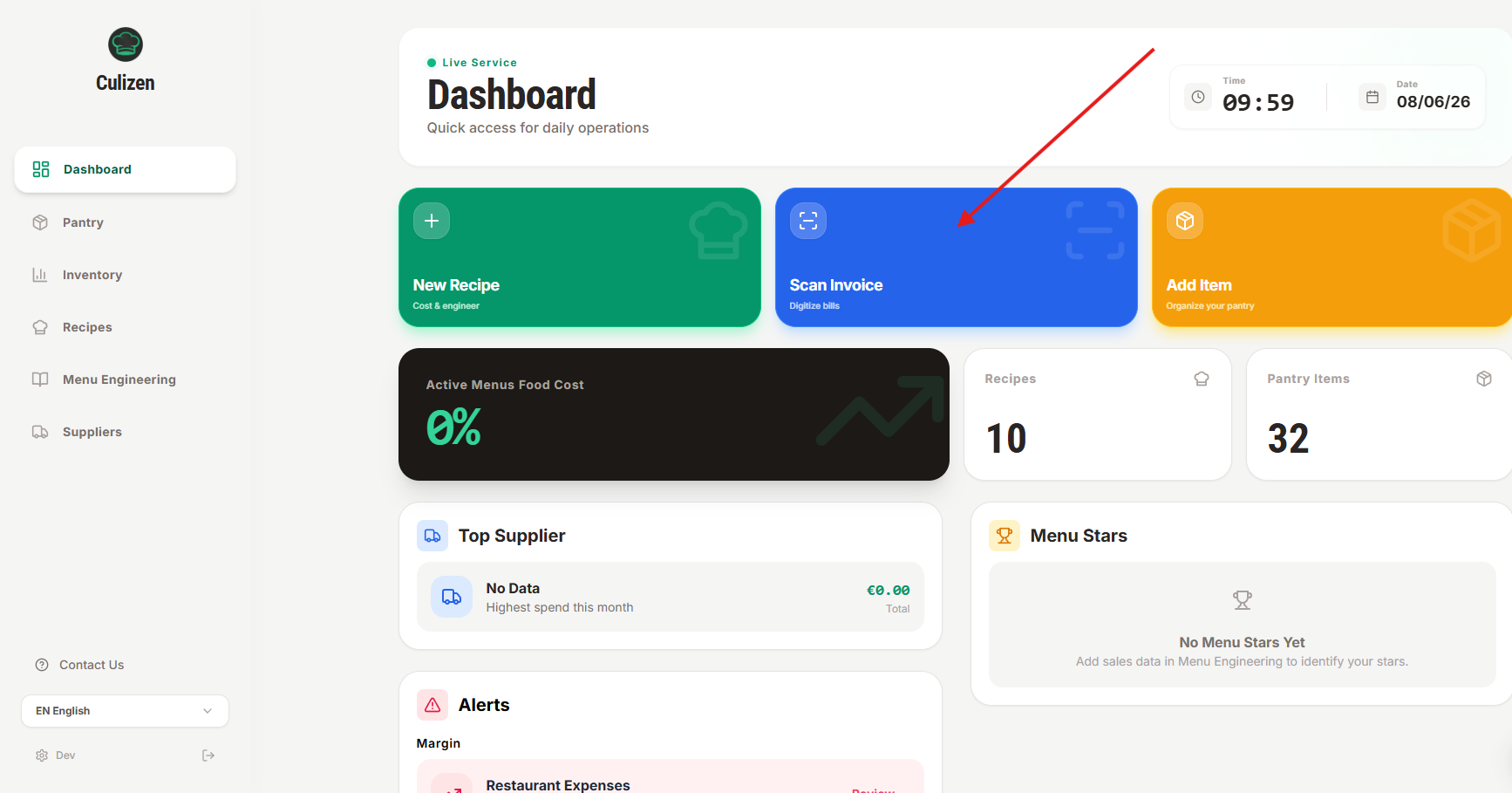
Go to Suppliers and click Scan Invoice (you'll also find this as a quick action on your Dashboard).
2. Give Culizen the invoice
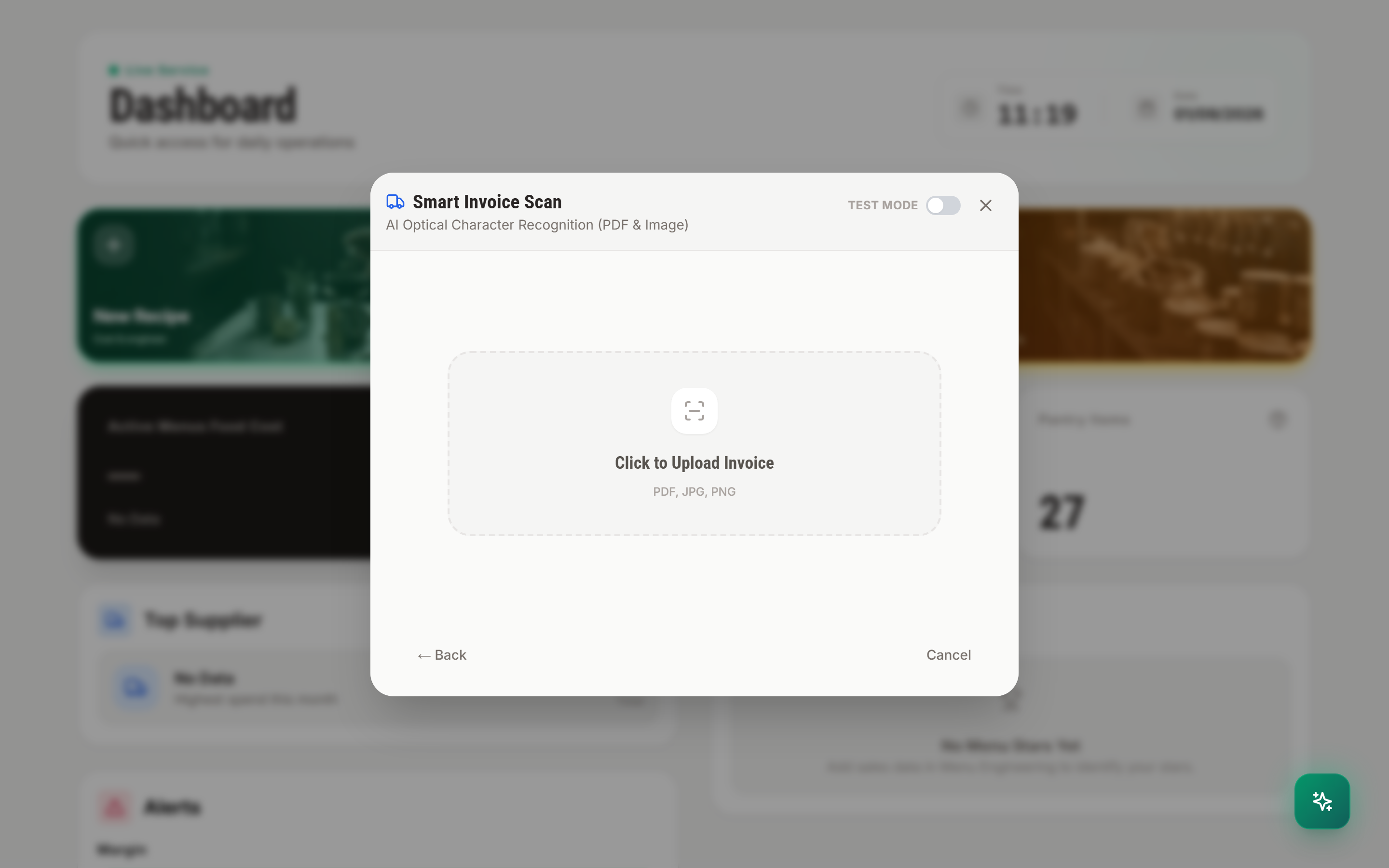
You have three ways to do this:
- Take a photo with your phone — a snapshot of the paper invoice is enough.
- Upload a PDF — for invoices your supplier emails you.
- Scan the QR code on a Greek tax invoice.
Culizen then reads the document: it picks out the supplier, the date, and every line item with its quantity and price.
3. Review what it found
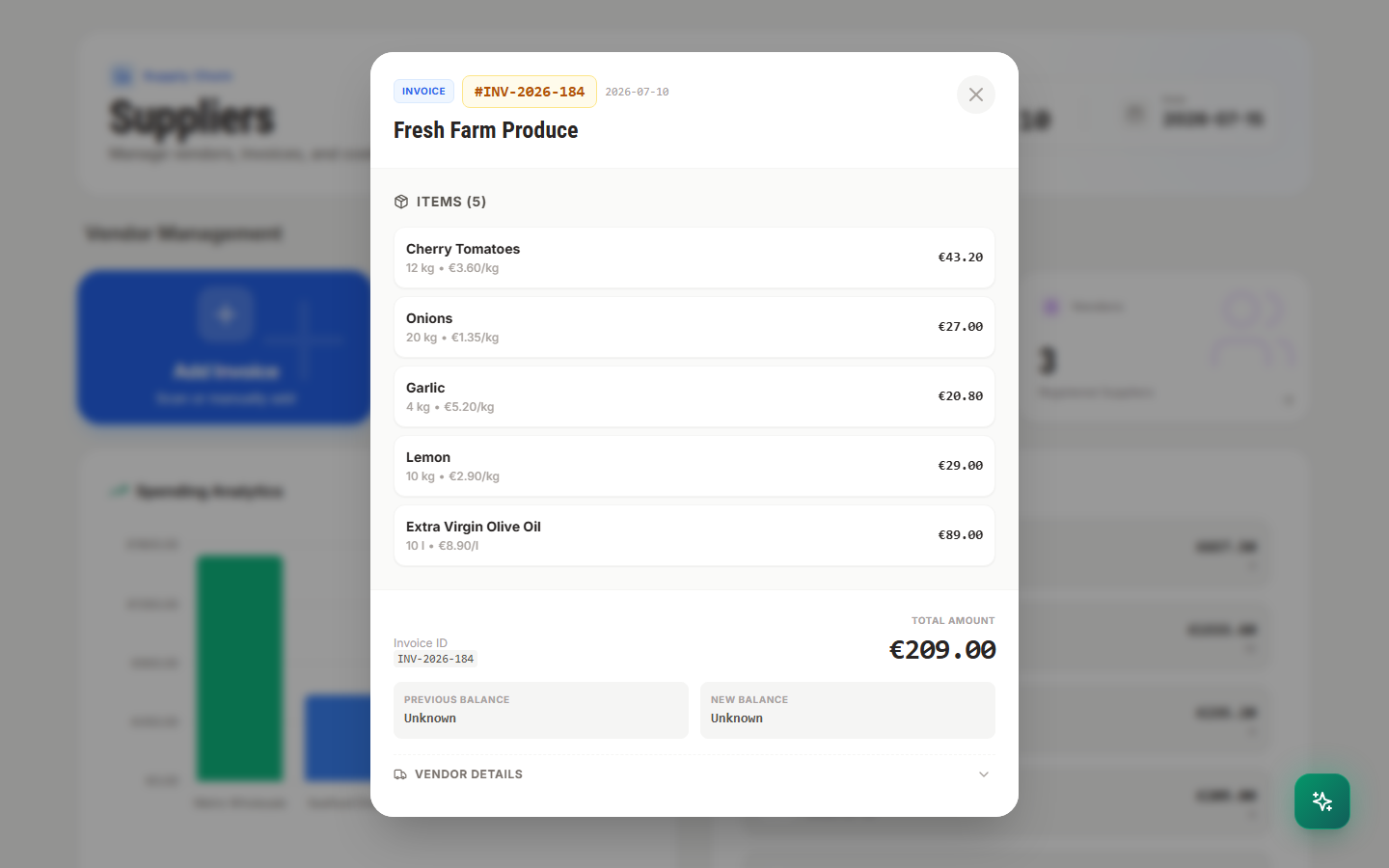
Culizen matches each line on the invoice to a product in your pantry. You'll see, line by line:
- Lines it matched to an existing product — just check they look right.
- Lines for products you don't have yet — Culizen creates these for you automatically as new supplier products. You don't have to set anything up in advance.
If you'd rather add a single product by hand, you still can — open Pantry and add an ingredient. But for everyday buying, let the scan do it.
Have a quick look down the list and fix anything that looks off — for example, if a line was matched to the wrong product, you can point it at the right one. Culizen remembers that choice, so the same supplier wording matches correctly next time.
4. Approve
When the list looks right, approve the invoice. The moment you do:
- The new prices are saved, with a price-history entry tagged as coming from an invoice scan, so you always have an audit trail.
- Every recipe that uses those products recalculates its cost — and you'll see which dishes changed.
Good to know
- Already scanned it? If an invoice with the same supplier, date and total already exists, Culizen warns you and offers to open the existing one — so you never double-count.
- Multiple invoices? On the Professional and Executive plans you can upload a batch at once and review them as a queue.
- Supplier balance captured from the invoice shows up in your supplier directory, so you can see what's outstanding.