Last updated: 2026-10-15
Why this matters: Once a dish is built from your ingredients and each one is linked to your pantry, Culizen costs it automatically — and keeps it costed forever. When a supplier price changes, the dish updates itself. The linking step is the one that makes costing actually work, so don't skip it.
Two ways to create a recipe
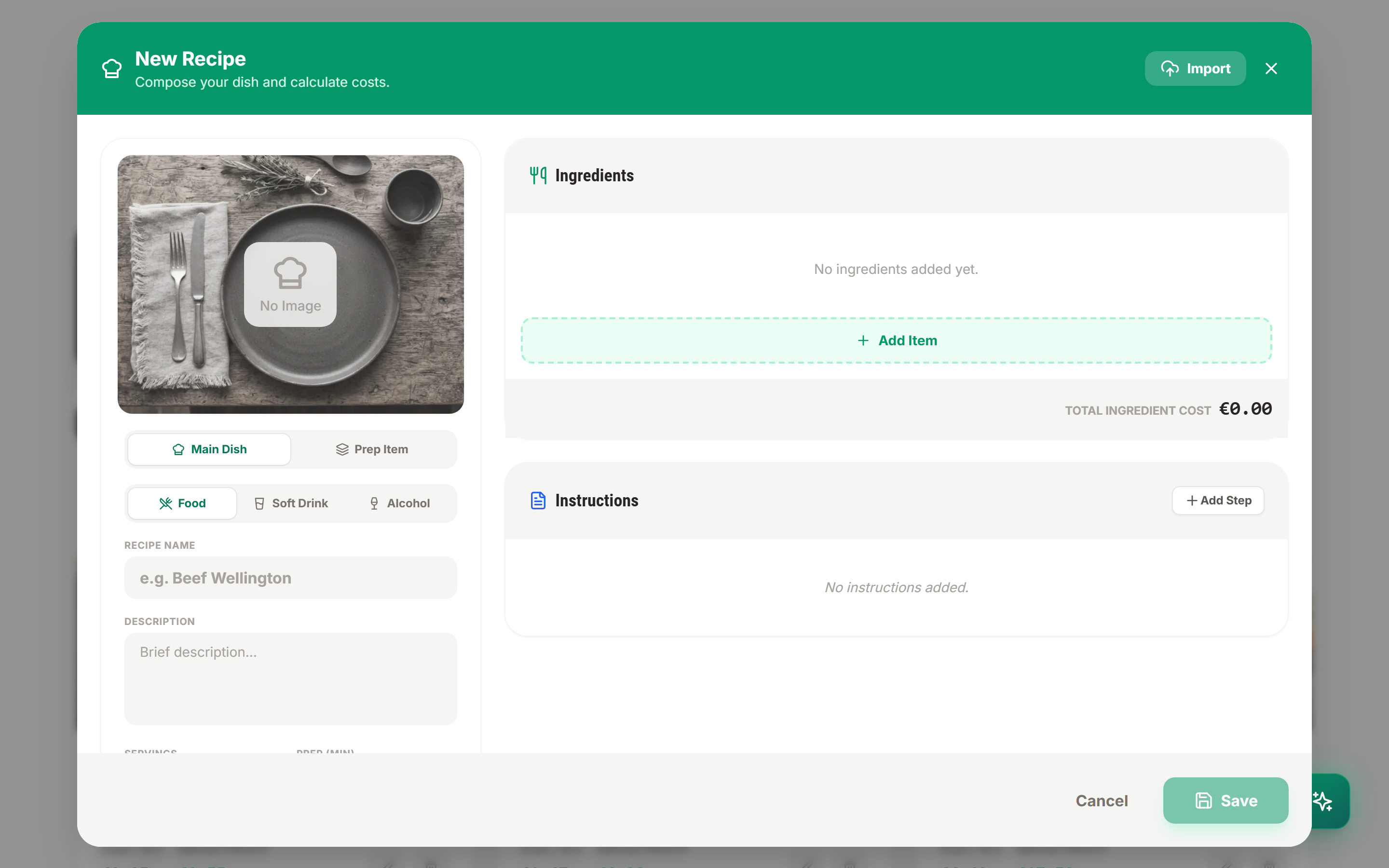
You can import a recipe from a file, or build one by hand. If you already have your recipes written down — in a PDF, a spreadsheet, a Word doc, or even a photo of a handwritten sheet — importing is by far the fastest way to get started.
Option A — Import from a file (fastest)
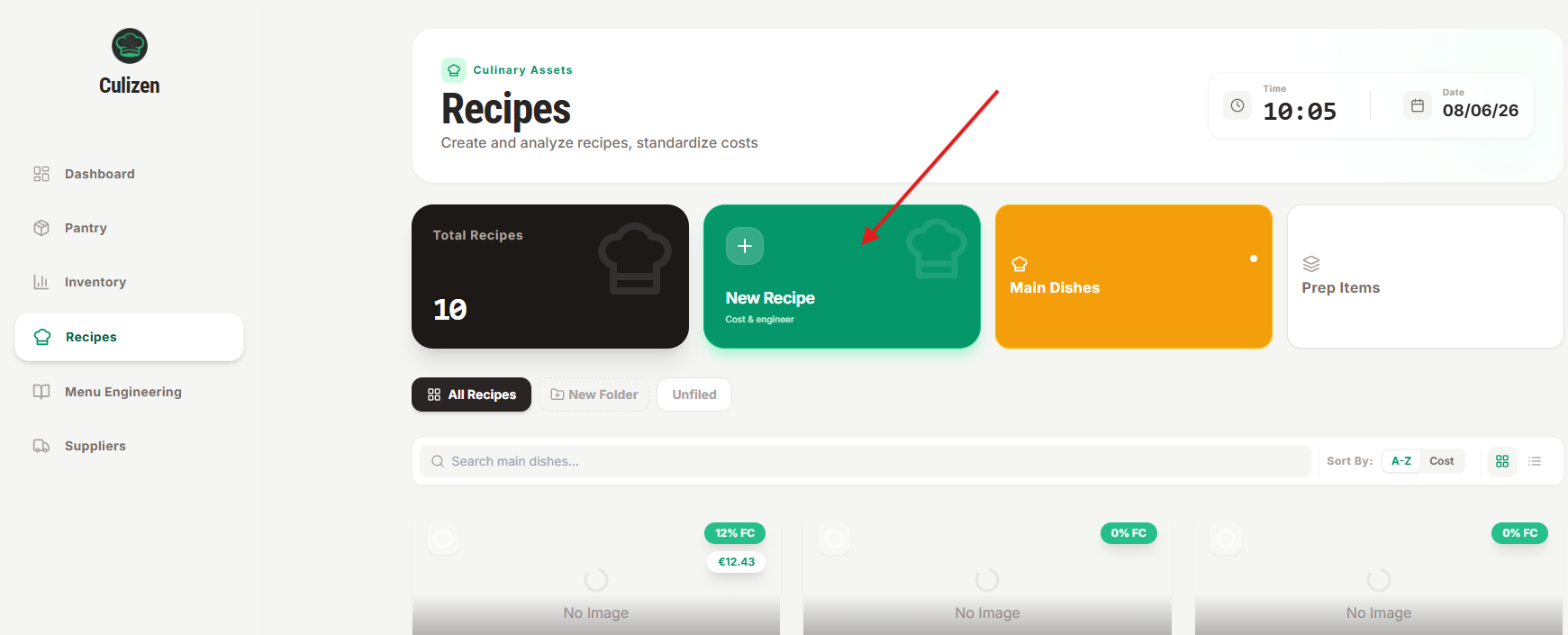
- Go to Recipes and click New Recipe, then choose Import Recipe — "Scan notes, PDFs, or images."
- Pick whether it's a Main Recipe or a Prep / Sub-Recipe.
- Click Click to Upload Document and choose your file. Culizen accepts PDF, JPG, PNG, DOCX, TXT, XLSX and more — and you can upload several at once.
- Culizen reads the document with AI and pulls out the ingredients and quantities.
- It then opens Link Ingredients to Pantry, where it has already matched each extracted ingredient to a product in your pantry. For each line you can accept the match, pick a different one, or Create new pantry item if you don't have it yet.
- Click Confirm & Continue. Your recipe is created, with its ingredients already linked.
Importing does the linking for you up front — that's why it's the recommended path. If you build by hand instead, you do the linking, so read the next section carefully.
Option B — Build by hand
- In Recipes, click New Recipe. Give it a name and choose a type:
- A main recipe, appetiser, dessert, beverage or side: something you sell.
- Or a prep item — a sub-recipe (like a sauce or a stock) you use inside other recipes. Culizen cascades its cost into every dish that uses it.
- Click Add Item to add an ingredient row.
Link every ingredient to your pantry — the step that makes costing work
This is the most important part of the whole app. An ingredient only has a cost once it's linked to a pantry product. An ingredient you just type the name of has no price behind it.
For each row:
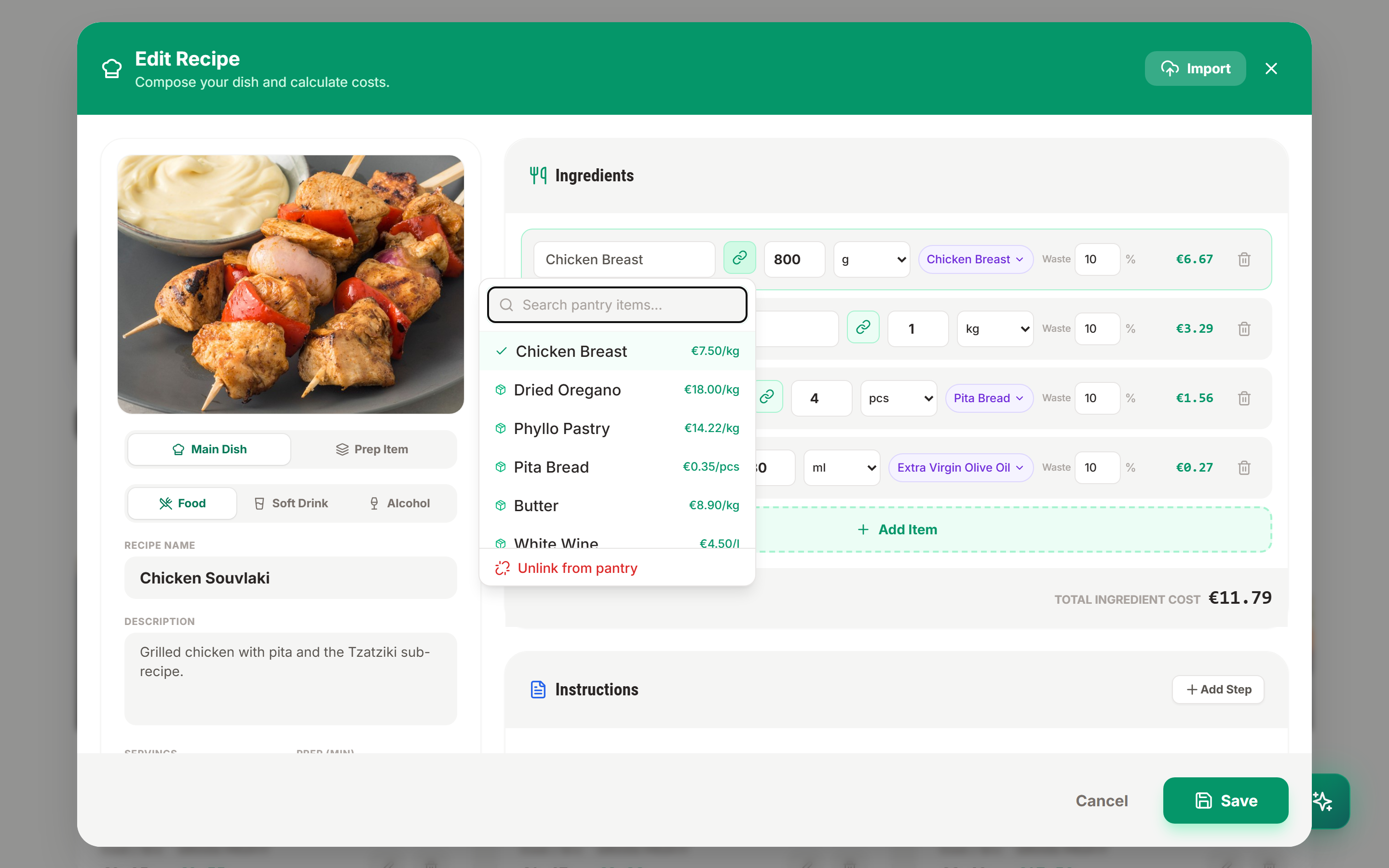
- Click the link (chain) button — "Link to pantry for cost tracking."
- Search your pantry and pick the matching product — the same products your scanned invoices created. Culizen suggests the closest matches (marked with a ✨).
- Don't have it yet? Click Create new pantry item to add it on the spot.
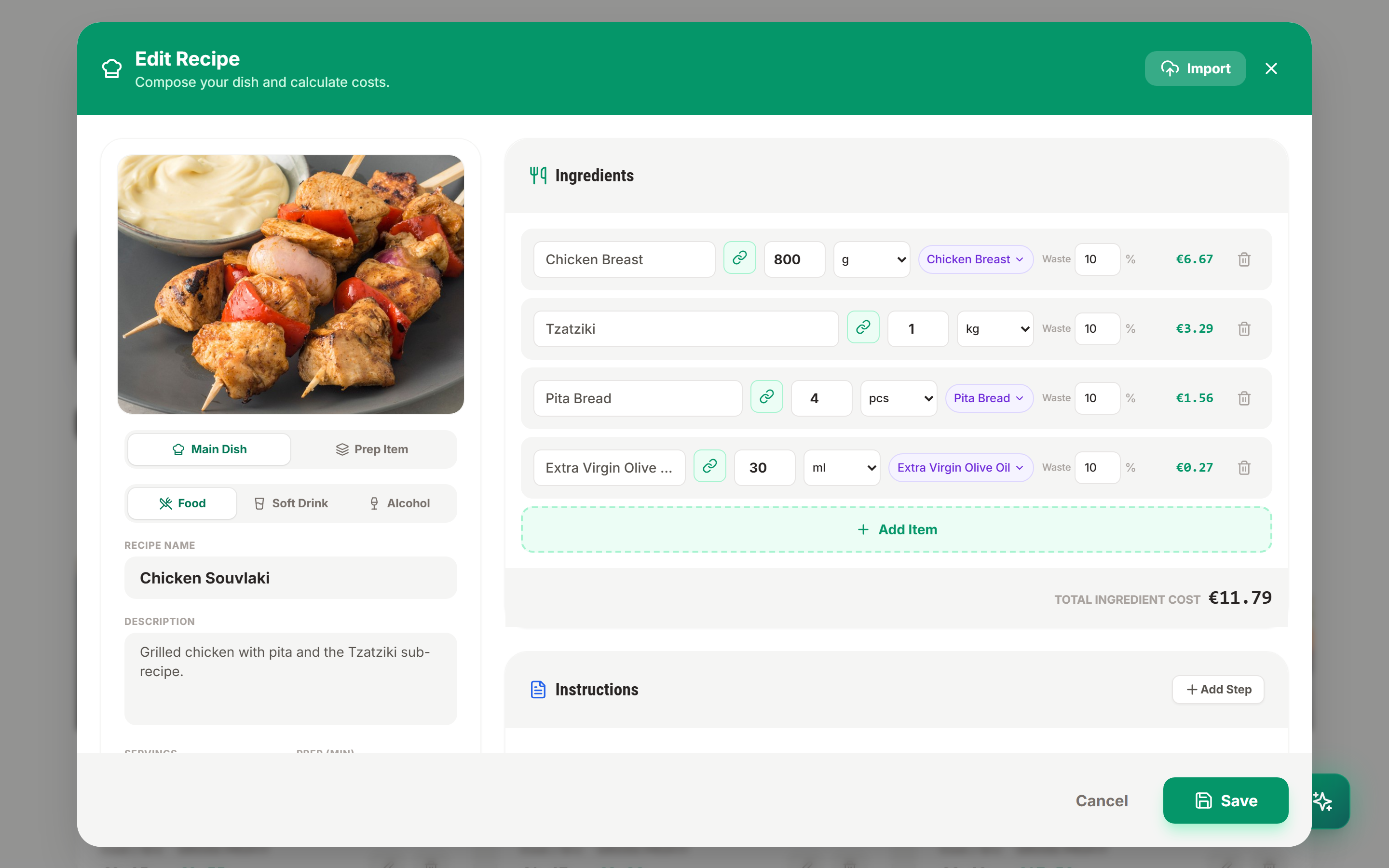
How to tell a line is linked:
| What you see | What it means | What to do |
|---|---|---|
| Cost in green (e.g. €1.20) | Linked, with a price behind it | Nothing — you're good |
| Red row, "Not linked to pantry", €0.00 | No pantry link — this ingredient adds nothing to the cost | Click the link button and link it |
| Amber "No supplier assigned" | Linked, but that pantry item has no price yet | Give it a price — scan an invoice for it, or set a cost in the Pantry |
Watch out: an unlinked ingredient doesn't show an error — it just counts as €0.00. That quietly makes your dish look cheaper and more profitable than it really is. If a recipe's cost looks too low, check for red rows.
Choosing a supplier: once linked, a chip shows Any variant by default — Culizen uses the highest-priced supplier option, so your costing is never too optimistic. If you buy a product from one specific supplier, click the chip to pin that variant.
Set quantities and waste
For each ingredient, enter the quantity you use, in its own unit (kg, litre, piece…). The cost builds up live at the bottom.
Tip: Set a food-waste % on an ingredient (for trim, peel, evaporation) and Culizen folds it into the true cost — so your numbers reflect what you actually use, not just what reaches the plate. Culizen defaults to 10% on food and 0% on drinks, but you can customize this per item or recipe.
Set your selling price
Enter what you charge. Culizen supports four channel prices, because the same dish often sells for different amounts:
- Dine-in
- Takeaway
- In-house delivery
- Platform delivery (Wolt, efood, Box…)
This matters because delivery-platform commissions eat into margin — Culizen automatically deducts your blended platform commission (e.g. 25%) from dish profit in Menu Engineering and Financials so you can see your true net margins.
Read your numbers
With every ingredient linked and a price in place, Culizen shows you, in real time:
| Number | What it tells you |
|---|---|
| Cost per serving | What the ingredients cost you to make one |
| Food cost % | That cost as a share of the selling price |
| Profit | What's left after ingredients |
| Health indicator | Green / orange / red against the target food-cost % you set earlier |
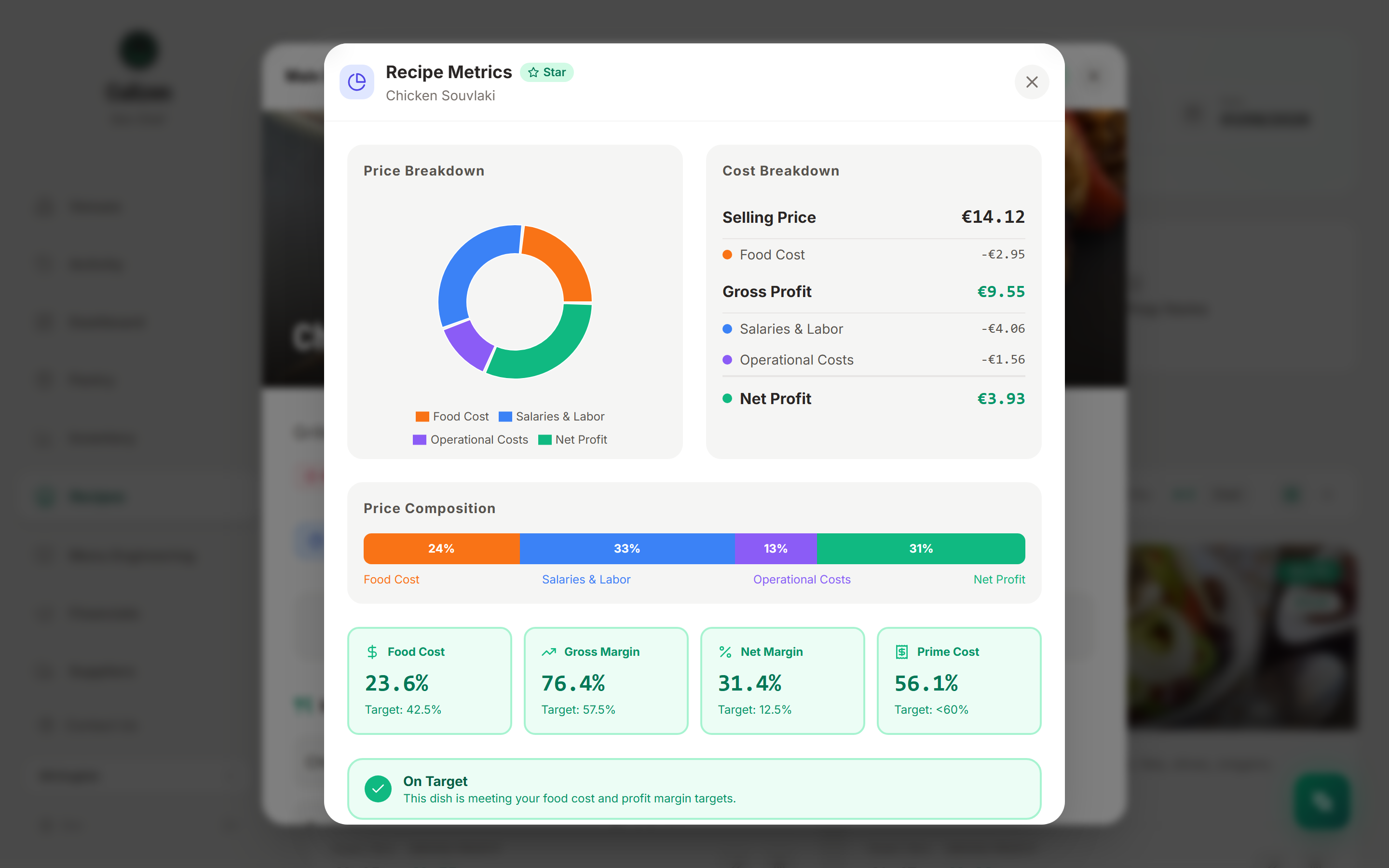
Culizen also rolls up allergens from all your ingredients automatically, and keeps a cost history for the dish so you can see how its cost has moved over time.
You've closed the loop
You've now done the full circle: your invoice prices feed your products, your linked products cost your recipes, and your recipes show your margins. From here you can build your Menu, record daily sales, and let Culizen tell you which dishes are your Stars and which are quietly losing money — but that's for the next set of guides.
Back to the start: Getting started with Culizen →