Last updated: 2026-09-01
Why this matters: Culizen calculates your food-cost %, profit and margins from a few settings about your business. Set them once, correctly, and every recipe and dashboard number afterwards is trustworthy. It takes about two minutes.
1. Open your settings
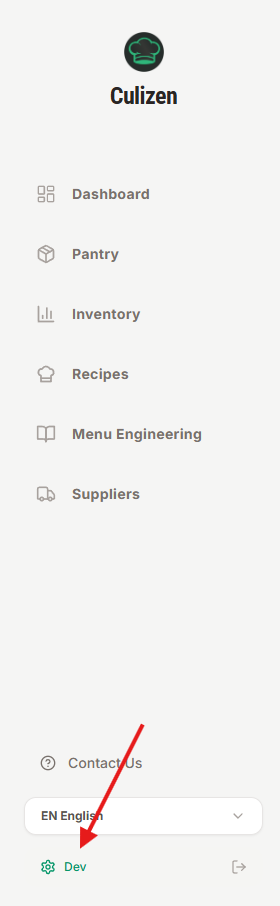
Click Settings in the left-hand menu.
2. Set your VAT country
Under the VAT/tax settings, choose the country you operate in. Culizen uses this to apply the right VAT rates to your prices and invoices, and to show prices with or without VAT consistently. Greece is selected by default.
You can also choose whether prices are shown with VAT — pick whichever matches how you think about your menu prices.
3. Set your cost targets
This is the important part. In the Expenses section you tell Culizen what a healthy plate looks like for your business:
| Setting | What it means | Typical starting point |
|---|---|---|
| Target food cost % | The share of a dish's selling price you want its ingredients to cost | 28–35% |
| Salaries % | Labour as a share of revenue | ~33% |
| Operational % | Rent, utilities, and other running costs as a share of revenue | ~12% |
| Desired profit % | The profit you're aiming to keep | ~13% |
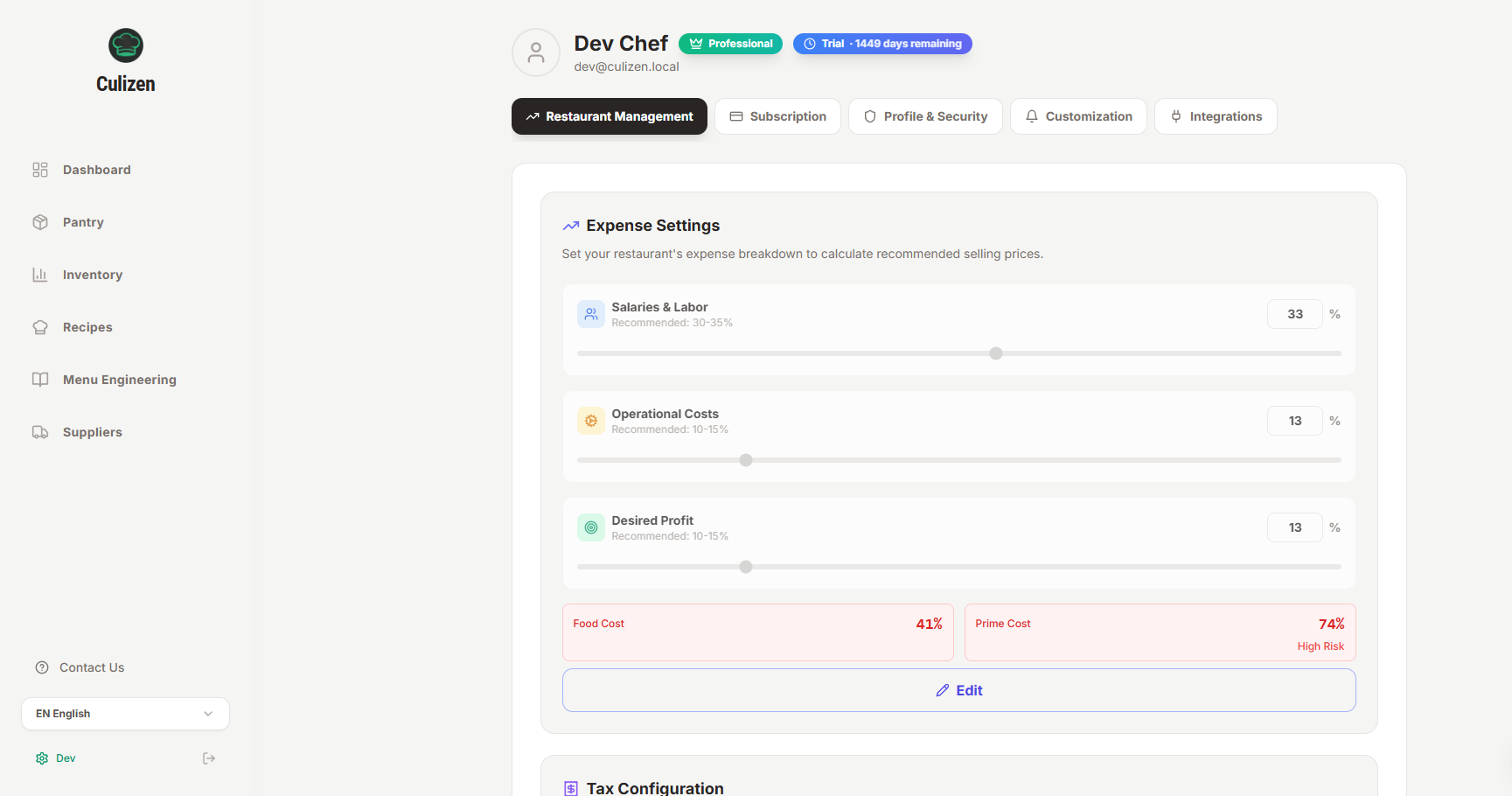
Don't worry about getting these perfect on day one — Culizen ships with sensible defaults, and you can change them whenever you like. They simply set the line between a "healthy" and an "over-target" dish.
4. How Culizen uses these
- The target food cost % decides whether a recipe's health indicator shows green (on target), orange (close) or red (over).
- Salaries + food cost together make your prime cost — the number most owners watch most closely. Culizen shows it with its own health indicator.
- The targets feed your dashboard, so the moment a dish drifts over budget, you'll see it.
That's it — your numbers are now set up correctly. Next, let's get some real prices in.