Last updated: 2026-10-13
Why this matters: In food and beverage, profit leaks through two major holes: unrecorded food waste and inventory drift. When cooks throw away spoiled prep or over-portion without a paper trail, your food cost spikes mysteriously at the end of the month. Culizen connects your invoice purchases, live recipe sales, par levels, and physical stock takes into one synchronized inventory system.
Live Inventory Overview & Par Levels
The Inventory tab gives you a real-time count and monetary valuation of every ingredient in your restaurant:
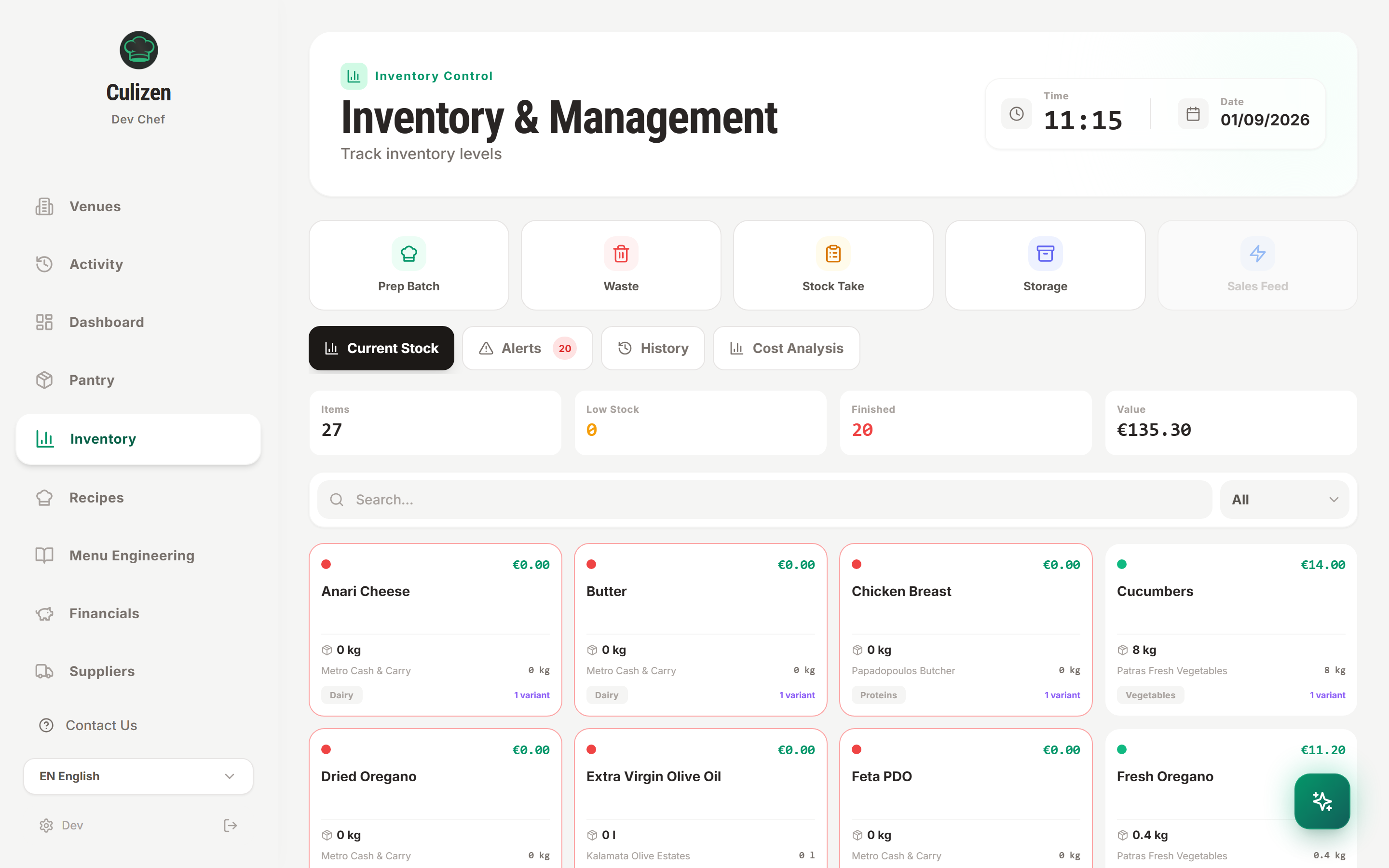
For each item, you see:
- Current Quantity: In the item's standard measurement unit (kg, litres, pieces).
- Total Inventory Value: Calculated at the current supplier price.
- Stock Status Badge: Green (healthy), Amber (low stock below your par level), or Red (depleted/out of stock).
- Storage Zone: Walk-in cooler, dry storage, prep line, or freezer.
Tip: Set a Par Level on high-turnover ingredients (e.g. 10 kg of Greek Feta). When your stock dips below that number, Culizen alerts you on the Dashboard before you 86 a dish mid-shift.
Fast Waste Logging — The 10-Second Paper Trail
Don't wait for month-end to discover waste. Kitchen staff can log waste instantly on a smartphone or kitchen tablet:
- In Inventory, tap Waste (or use the trash icon on the mobile nav).
- Tap the ingredient you are discarding.
- Enter the quantity and select the Waste Reason:
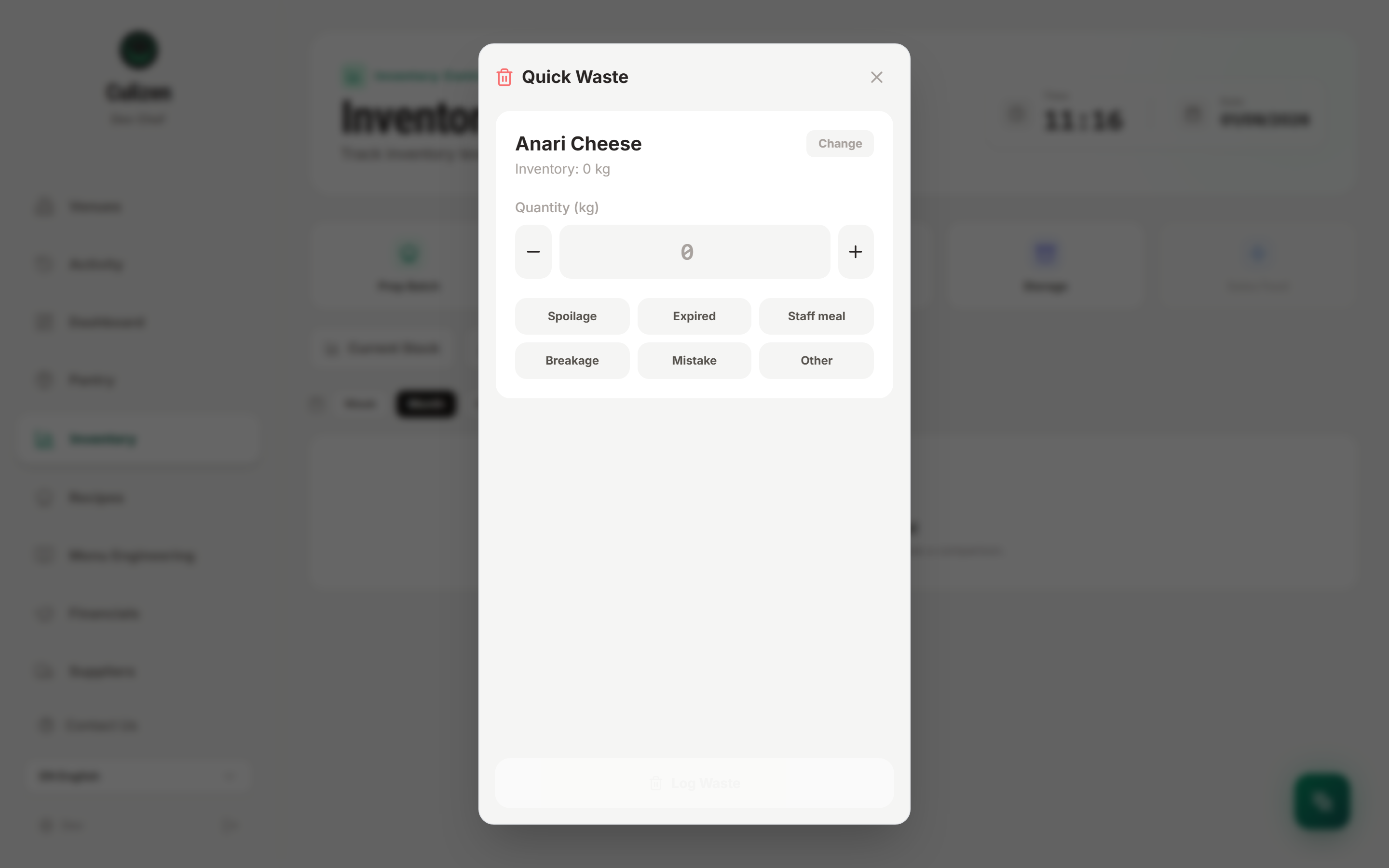
| Reason | When to use | Financial Impact |
|---|---|---|
| Spoilage | Produce or dairy past peak freshness | Identifies over-ordering or improper cooler temps |
| Expired | Packaged goods past their shelf life | Flags slow menu turnover |
| Staff meal | Ingredients used for crew shift meals | Transferred out of dish food cost to labor overhead |
| Breakage / Spill | Dropped bottles, sauce spills, dropped trays | Operational accidents |
| Mistake / Re-fire | Burnt steaks, incorrect allergy orders | Identifies kitchen training gaps |
| Trim & Prep Loss | Bones, fat trim, melon rinds exceeding standard recipe loss | Adjusts true edible portion yield |
Every logged waste event immediately deducts inventory and appears in your Audit Log & History, keeping your numbers honest.
Conducting a Stock Take
Regular stock counts reconcile digital expectations with physical reality. Culizen gives you two ways to count:
Method A — Mobile / Digital Stock Take
- Open Inventory → Stock Take and tap Start Stock Take.
- Filter by Storage Zone (e.g. "Walk-in Cooler") so the order matches your physical shelf layout.
- Walk the line and enter actual counts.
- Tap Complete Stock Take. Culizen reconciles the differences, updates on-hand quantities, and logs an inventory adjustment entry.
Made a mistake? In Inventory → History, you can reopen a completed stock take and adjust a miscounted line without having to restart the entire inventory audit from scratch.
Method B — Printable Count Sheet (PDF)
If your kitchen prefers counting with a clipboard during busy changeovers:
- Tap the export button in Inventory and choose Printable Stock Take Sheet (PDF).
- The sheet generates pre-grouped by storage zone, with items in alphabetical order and blank lines for counts. Each line has a short printed row code in a narrow
#column on the left, and a small Count in column on the far right lists the units the scan accepts for that row (for examplepcs · kg). Staff write only in the Quantity and Unit columns, never in#or Count in: those two are printed for the scan. - Once counted, get the figures into Culizen in minutes: type them in, or on the Professional and Executive plans scan the sheet back in.
- To scan it back in, choose Scan printed sheet in Stock Take and upload photos of the filled-in pages, or one PDF holding every page (the multi-page PDF from a scanner app works). One import takes up to 20 pages. Culizen reads each page, and you review every number before anything is saved. Pages can be uploaded in any order, since the row codes do not depend on it. Sheets printed before the codes were added still scan fine, because matching falls back to item names.
- Nothing is lost if you stop halfway. As soon as Culizen has read the sheet, the review is saved as an unfinished stock take, and it saves again as you edit (the header shows "Saved 14:02"). Pressing X, closing the tab or reloading keeps it: you see "Scan review saved. Resume it from Inventory." Come back through Inventory with Resume scan review (or Continue on the card above the tabs), on any device, signed in as any owner or manager of the venue. Reopening costs no new scan. To start over, press Discard scan: the counts read from the sheet are deleted, your pantry does not change, and any pack sizes you set stay. An unfinished review is never deleted on its own, and there is only one at a time, so scanning again asks you to Continue the unfinished review or Discard it and scan again.
- Two devices. If someone saved a newer version while you were editing, Culizen asks you to choose: Load the latest takes their version (your latest edits here are dropped), Keep mine replaces theirs. If the stock take was finished on another device, you are told, and you can find it in History.
- A row written in the wrong unit. Say the sheet reads "32 kg" for baking paper, which you count in pieces. Nobody weighs baking paper, so the unit is almost certainly a slip. The row is marked and will not be saved until you decide. If the unit was a slip, press Count 32 as pcs: the number stays and the row is counted in the item's own unit (Undo puts it back). If it really is a weight or a volume and the item has no pack size yet, press It's a weight: set pack size, enter for example 1 pcs = 0.2 kg and save. The pack size is stored in your Pantry, recipe costs use it from then on, and the other rows do not change. For an item that already has a pack size, change the row's unit, or edit the pack size in the Pantry.
- Finishing. Confirm & Complete Stock Take completes that same stock take and updates on-hand quantities as of the count date you chose. If the stock take is saved but stock could not be updated, open Inventory → History, open that stock take and press Update stock now. The banner and button show only on the most recent stock take, and nothing is counted twice.
See Why Your Stock Is What It Is
Every change to your stock leaves a record: a sale, an invoice, a stock take, a waste entry, a prep batch, a manual adjustment. Two views show them as plain quantities and sources (no prices, and not who recorded them).
- Movements tab. Open Inventory → Movements. Each row is one event, newest first, for the last 30 days (tap Filter to change the dates, pick a kind of event or search for an item). Tap a row to see which items moved and by how much. An invoice row names the invoice and its items, and a sales row shows how much each dish took from stock.
- Why this number? On any item in Current Stock, tap the question mark (or open the item and tap Why this number?). It starts at the last stock take that counted the item, lists every movement since then with the running balance, and ends on the number the card shows. When the two do not match, an amber line says by how much and names the likely cause, for example a sale edited for an earlier day. That usually means something changed the stock without a record, such as a direct edit: check your recent stock takes and adjustments.
- Since last count. In Movements, switch from Events to Since last count to see every item on one list: the stock when it was last counted (with the date of that count), the stock now and the change between them, what came in, what was sold, what was wasted, anything else, and the part that no recorded movement explains. The biggest difference comes first (or sort By name), you can filter by category or search, and tapping an item opens its Why this number?. An item no stock take has counted says Not counted yet. If an item is counted in another unit than it has now, it says so and is not compared. At first it looks back at most 90 days; tap Show earlier to go further.
- From Activity. Owners and managers can tap Stock effect on an invoice, sale, stock take or waste entry in Activity to see only that record's movements.
Good to know: sales show their current totals. When a sale was edited or deleted, earlier versions are not kept yet. These views need a connection, and everyone on the team can read them, viewers included.
The Drain Report (Cost Analysis)
How do you know if you are losing money to theft, unrecorded spoilage, or over-portioning?
Open Inventory → Cost Analysis (The Drain Report):
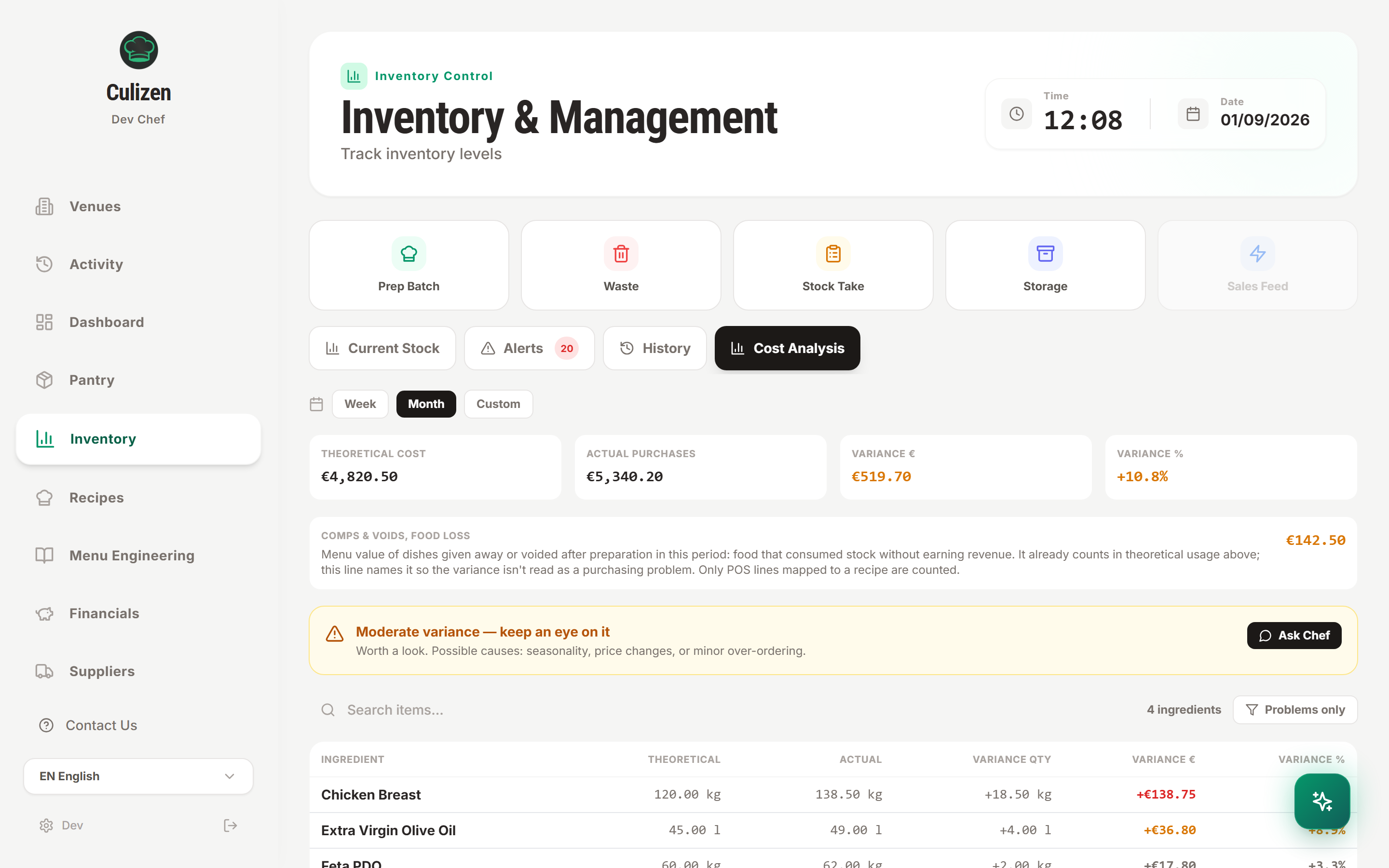
The Drain Report runs a continuous comparison: $\text{Theoretical Usage} = \sum (\text{Dishes Sold} \times \text{Recipe Ingredient Quantities})$ $\text{Actual Usage} = \text{Starting Inventory} + \text{Invoice Purchases} - \text{Ending Inventory}$
- Balanced: Actual purchases match theoretical usage within your standard waste margin.
- Over-Buying / Drain Alert (Red): Purchases significantly exceed what recipes accounted for. You may have over-ordered, experienced unrecorded waste, or cooks are over-portioning proteins on the line.
- Stock Drawdown (Blue): Purchases are lower than theoretical usage — you are drawing down stock purchased in a previous week.
Reviewing the Drain Report weekly turns your inventory from a passive storage list into an active loss-prevention engine.