Last updated: 2026-09-01
Welcome to Culizen. This guide gives you the big picture in a couple of minutes, then points you to the three things to do first.
What Culizen does for you
Culizen connects three things that usually live in separate spreadsheets — your supplier prices, your recipes, and your menu sales — so they update each other automatically.
The heart of it is one loop:
- You scan a supplier invoice (a photo or PDF).
- Culizen reads the prices and updates the matching products.
- Every recipe that uses those products instantly shows its new cost.
- Every dish on your menu shows its updated profit and margin.
So when your supplier raises the price of feta, you don't have to recalculate anything. You see, the same day, exactly which dishes got more expensive and by how much.
Do these three things first
You'll feel the value within about 10 minutes if you do them in order:
- Set up your restaurant — tell Culizen your VAT country and your cost targets once, so every number it shows you afterwards is correct.
- Scan your first invoice — this is the moment everything clicks. Culizen creates your products for you from the invoice.
- Create and cost a recipe — build one dish and watch its food-cost % and profit appear.
Finding your way around
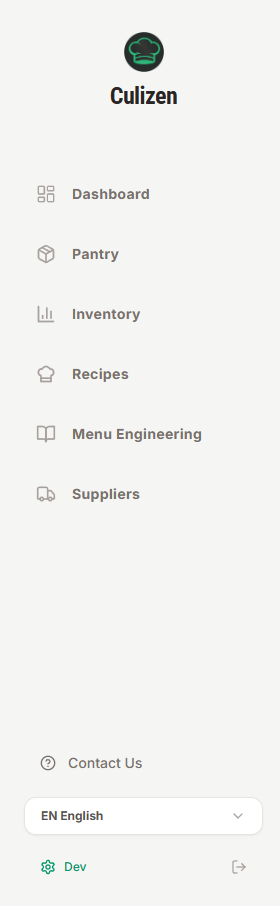
The menu on the left is your map:
- Dashboard — your home screen. One glance tells you your food-cost %, your alerts, and your top dishes and suppliers.
- Pantry — every ingredient and product you buy, with its current price and price history.
- Suppliers — your supplier directory and every invoice you've scanned.
- Recipes — your costed dishes and prep items.
- Menu — your menus and the sales figures that drive profit analysis.
- Stock — inventory counts, waste, and low-stock alerts.
- Settings — your restaurant setup, language, billing, and data export.
Change the language
Culizen speaks English, Greek and German. Open Settings and choose your language from the picker — the whole app switches instantly, and it remembers your choice next time.
Redo the guided tour
The first time you sign in, a short interactive tour points out the key buttons. You can replay it any time from Settings if you want a refresher, or to show a new team member around.